Nobody Owns a Printer Anymore. Forms Didn’t Get the Memo.

Print it, sign it, scan it, send it back.
That instruction still turns up in inboxes constantly, and it assumes a household that has a printer, a scanner, paper, and ink that has not dried out since the last time anyone needed it. Increasingly that household does not exist.
So people improvise. They print at work. They photograph the page on a kitchen counter at an angle, producing a grey lopsided image that gets rejected. They download a free PDF app, fill in three boxes, and discover the finished file has a watermark across the middle of their signature.
There is a better way to handle this, and it takes about the same amount of time as finding the printer cable.
Why PDFs are awkward in the first place
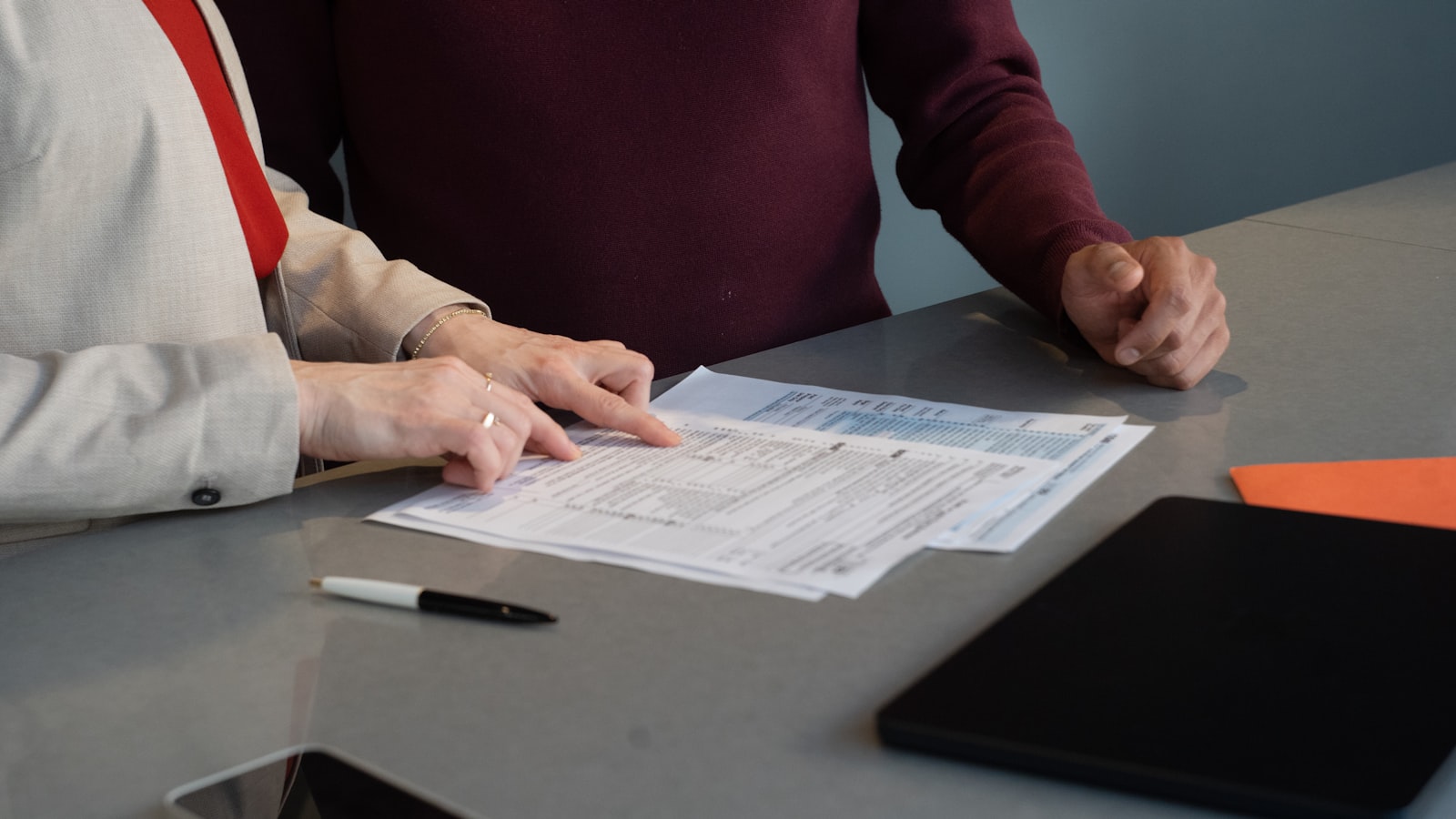
A PDF is designed to look identical everywhere, on any screen, on any printer, forever. That is genuinely useful, and it is exactly why editing one feels like being handed a photograph of a document rather than the document itself.
Some PDFs are proper interactive forms with real fields you can click into. Most of the ones landing in your inbox are not. They are flat pages, and to fill one in you need a tool that lets you place text and a signature on top of the page rather than into it.
That single distinction explains most of the frustration. The free reader on your computer will happily display the file and refuse to let you type on it.
What to do instead
Browser-based PDF editors solve this without installing anything. You open the file in a tab, add what you need, and export a clean copy. DocHub is one of the better-known ones, and it is a reasonable illustration of what this category can and cannot do.
The core functions are the ones the situation calls for: annotating pages, inserting images, adding or managing form fields, whiting out text you need to remove, and merging separate PDFs into one file. On the signing side it handles both signing a document yourself and sending a signature request to someone else. There is also a templates feature for documents you send repeatedly, which matters more than it sounds if you are a landlord, a tutor, or anyone who emails the same agreement to a stream of different people.
The integration list is the practical part. DocHub connects with Google Drive, Gmail and Dropbox, which means the common version of this problem, a PDF arriving as an email attachment, can be handled without the file ever touching your desktop. For anyone living in Gmail, that removes the download-edit-reupload shuffle entirely.
On security, the company cites 256-bit SSL encryption, OAuth 2.0 authentication and redundant encrypted storage. Worth knowing, given that the documents involved in this kind of task tend to be the personal ones.
✍️ Open the PDF in a browser tab and sign it there
Read the free plan carefully

This is the part that decides whether the tool is right for you, and it is easy to skim past.
DocHub’s free tier is not unlimited. Its features share a monthly allowance of three uses, along with three folders and document collaboration with one other person. Basic PDF editing is there, as is an AI assistant, but advanced signing, bulk operations and password protection are not.
The genuinely surprising detail is that the paid Basic tier keeps that same shared three-use limit. It adds whiteout, highlighting, file attachments, unlimited self-signing and the ability to invite five team members, but it does not remove the cap on the core features. Bulk sending, in-person signing and the more advanced security options stay locked.
Pro is the tier where the limits actually disappear: unlimited PDF editing, unlimited signature requests, the full DocHub Intelligence set, in-person signing, bulk sending, document password protection, unlimited team members and public sharing. It carries a 30-day trial. Above that sits a Site License for organisations, which is where HIPAA compliance, single sign-on and workspace management live.
Translated into plain terms: if you need to fill in one school form this month, the free tier does the job. If you sign things every week, the free tier will run out and Basic will not fix it. That is a useful thing to know before you pay eight euros for the wrong plan.
Pricing is listed on DocHub’s own site and displays in your local currency, so check the current figures rather than trusting any number you read in an article, this one included.
📄 Compare the tiers before you pick one
The five-minute method for a form that lands in your inbox
Open the attachment in a browser-based editor rather than downloading it. Add your text on top of the page, one field at a time, checking the alignment as you go. Add your signature once and save it, so the next document takes seconds instead of minutes. Export a fresh copy rather than overwriting the original, in case you need to redo it. Then reply with the finished file attached.
Two habits make this permanently easier. Save a signature image or a stored signature in whatever tool you settle on, because re-drawing it with a trackpad every time is where most of the frustration lives. And keep the blank original of any form you fill in repeatedly, so next year’s version starts from a clean page rather than last year’s answers.
⚡ Skip the printer and get it back today
When this is the wrong tool
If you need to restructure a document rather than complete it, rewriting paragraphs and reflowing pages, a PDF editor is the wrong instrument. Go back to the source file, or convert to a word processor and rebuild it there.
If you are handling contracts at volume with legal weight attached, audit trails and identity verification, a dedicated e-signature platform is built for that and a general PDF editor is not, whatever tier you are on.
And if the document is genuinely sensitive, medical records or anything with financial identifiers, take a minute to check what the free tier of any web tool does and does not offer in terms of protection. On DocHub specifically, password protection sits on Pro and HIPAA compliance sits on the Site License, not on the free plan.
For the ordinary case though, the permission slip, the rental form, the insurance claim, the thing your accountant needs signed by Friday, the printer was never the answer. It just used to be the only one.